
Mostly for admins
Students
Admitting and importing, guardians, moving classes, promotion, and better photos.
Updated 18 October 2026
On this page
Admit a new student
Who can do thisAdmins

- On Students, press (New Student).
- Add a photo (optional): Add Image › Take photo or Choose image. See good student photos.
- Fill in Personal Data. First name and surname are required.
- Fill in Admission Data: the date admitted, the term and the class (stream). Tick Tuition Waiver for a pupil who doesn't pay tuition.
- Leave “Charge admission fees” ticked to charge the level's admission fees; untick it for a pupil who shouldn't pay them.
- Press Save. SR gives the student an ID (SID).
Import students from Excel
Who can do thisAdmins
Starting with many pupils? Import them all at once.
- On Students, press (Import from Excel).
- Press Download template. It's made for the term you're viewing, with this year's classes in a drop-down: pick classes from the list.
- Fill it in: one student per row, with a guardian if you have one.
- Upload it and press Check the file. If any row has a problem, nothing is imported and SR lists what to fix.
- Press Import when the check passes.
Imported students are never charged admission fees: they were at the school before SR.
Guardians and the parent portal
Who can do thisAdmins
- Open the student's profile and press beside Guardians to add a guardian linked to them.
- Or press (Add Guardian) on Students, then Link Student from the guardian's menu for each child.
- For the parent portal, choose Parent portal from the guardian's menu and press Give access. Give the parent the one-time code shown; they sign in at parents.lauriandc.com with the school code, their phone number and the code, then choose a PIN.
The student menu
Who can do thisEveryone (what's in it depends on your role)
Most things you do with a student are in their menu: Profile, Edit, Change photo, Change class, Record payment, Payments, Invoice, Exam Reports, Transcript…

- Computer: right-click the student, or double-click.
- Phone or tablet: press and hold the student, or double-tap.
Move a student to another class
Who can do thisAdmins
- Student menu › Change class.
- Pick the new class and save. The pupil moves for the rest of the year; this term's invoices move with them.
- Read the message about fees. If the new class has a different fee list, an unpaid school-fees invoice is swapped for the new one. If something was already paid, it stays and SR says so, so the bursar can adjust it.
Inactive or withdrawn students
Who can do thisAdmins
A student is Active, Inactive (away for a while) or Withdrawn (has left the school), term by term.
- Student menu › Edit.
- Change Status and press Save. Inactive and withdrawn pupils get no new invoices and aren't promoted; their records stay.
Promote at the end of the year
Who can do thisAdmins
- Create next year and its streams first (see the academic year).
- Open Transitions › Promotions.
- Choose From (the year) and Who (Everyone, one level or one class).
- Press Preview to see where each class goes and anything to fix first.
- Press Promote. Only Active pupils move.
Good student photos
Who can do thisAnyone who takes photos
A phone held close stretches faces (a bigger nose, smaller ears). Take the photo from further away, then crop.
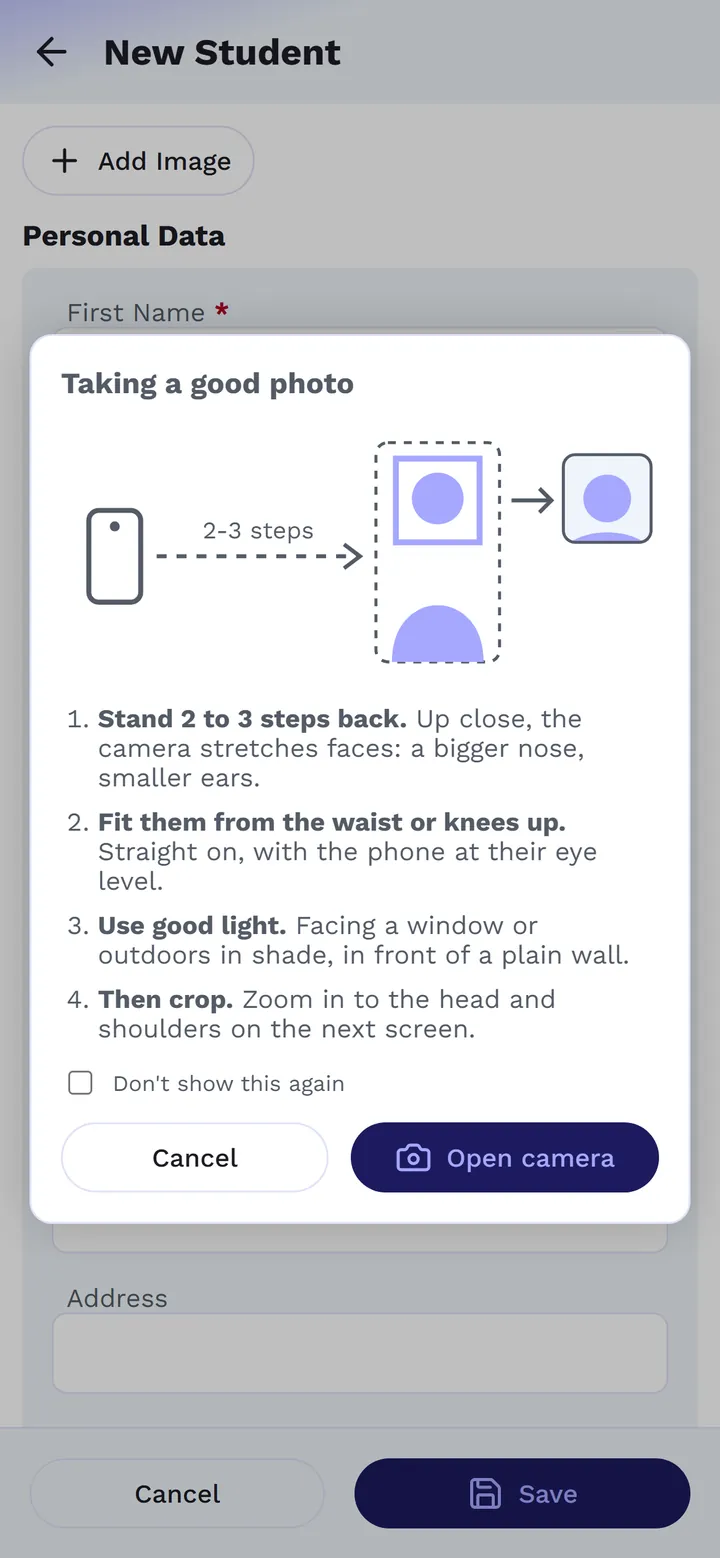
- Stand 2 to 3 steps back (about 1.5 metres).
- Take them from the waist or knees up, straight on, with the phone at their eye level. Use the back camera.
- Use good light: facing a window or outdoors in shade, in front of a plain wall. Avoid the flash.
- Crop to the head and shoulders in Adjust Image: drag and zoom, leaving a little space above the head.